How do I save Bluetooth pairing to different connections? when I go into agent, after connecting to different to devices, I do not see any listed connections under the “Connections” section.
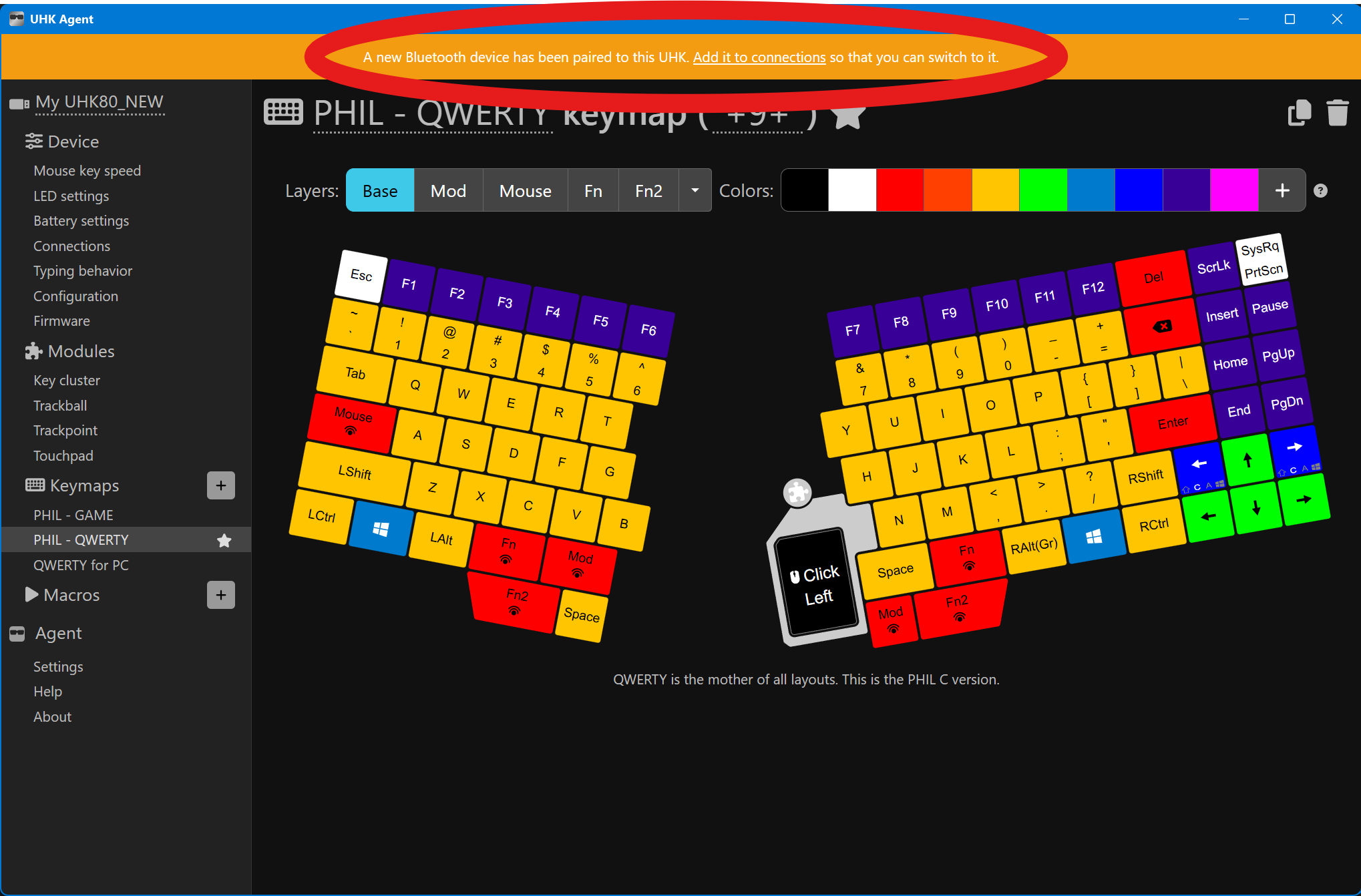
If you pair a device while Agent is open, do you see a yellow banner at the top that says: “A new Bluetooth device has been paired to this UHK. Add it to connections so that you can switch to it.”?
1 Like
Actuall I have not been in the agent while connected to Bluetooth, last time I tried it said can’t find UHK or something like that. Let me try to open it again tonight while on BLE
Agent currently only recognizes the UHK when plugged in via USB. So, try pairing BLE devices while it’s also connected with a USB cable. Then you should be able to add them by using the “Add to connections” banner. That should save them into the “Connections” list, where you can rename/reorder them. Once the devices are saved to keyboard, then you should be able to switch between host connections, etc. outside of Agent.
Doesn’t the board stop advertising BLE when plugged in via USB?
Unless something’s changed recently, I’m pretty sure the default is for BLE to always advertise so you can connect to other hosts on-the-fly. However, you can disable it with set bluetooth.alwaysAdvertiseHid false if you want.
For example, I connect via USB 90% of the time, so I add set bluetooth.alwaysAdvertiseHid false to my $onInit macro, and then manually toggle BLE advertising with bluetooth toggle advertise.
1 Like
hi, im having a similar issues, where my keyboard supposedly is in bluetooth mode but then when i disconnect to go wireless it shuts off. additionally my keyboard display doesn’t show the battery statuses of either side
Ok got it, thank you. I will check out the macros ya Norseman, mine turns off as well on disconnect. Battery life does display tho once I turn back on
Sounds like you batteries are not properly connected, so the keyboard actually shuts down?
Anyways, the keyboard just turns off all leds when there is no host connection, but still advertises bluetooth, so it should be possible to connect to it.
Are you trying to connect to it with a device that is already paired and saved in host connections? I guess I may have not realized that it needs to wake up on pairing attempts too, so it may be impossible to pair a new device to it in such cases  .
.
I just checked, and it seems to be working fine for me. Using release FW v15.3.1, and master branch Agent v8.0.1 eceab78.
I unpaired from my phone, deleted all device pairings in Agent, and deleted my phone from the connections list. Then I closed Agent and unplugged the UHK80 from USB (LEDs turned off as expected).
Initiated pairing from my phone (UHK woke up as expected) and pairing was successful. Then I ended the connection to the UHK from my phone and reopened Agent. Yellow “Add to connections” banner appeared and successfully added my phone to the connections list, even with the phone disconnected  .
.
1 Like
What do I do if I don’t get the yellow banner to add a new connection? I just received a new UHK80 (replacement for a recalled device), paired a Windows laptop and added it to the connections in Agent. Then later I loaded a different older UHK60 config and the connection was no longer shown in the Connections. I tried clearing Connections, removing the UHK80 from the Windows BT settings, and re-paired it, but I don’t get the yellow banner anymore. So I can’t add it to the Connections in Agent anymore.
The UHK display shows “New Bluetooth Device” but Agent ignores it. I have restarted Agent and tried unplugging and replugging USB, too.
What should I try next?
Nag me about it in regular intervals :-).
Is there a known issue that awaits a fix?
Idk how helpful this is, but I saw these:
OK, but is there a manual procedure how I can revert to Connections to a clean state, and then re-add them manually so that it shows up again? I just can’t find any way to get my Laptop connection back into the list now…
Is there a known issue that awaits a fix?
No idea.
is there a manual procedure how I can revert to Connections to a clean state, and then re-add them manually so that it shows up again?
My guess is restart your UHK and restart Agent. If you have the devMode true, you may need to switch it to false and reboot UHK.
In case you need/want to look deeper into it, then bonds are saved in zephyr settings. If you have direct access into a zephyr shell, then settings list should give you some details, if not then a zephyr settings list macro would do the trick while looking at the logs in the Agent advanced section. Also a zephyr uhk connections might give you some pointers regarding existing bonds.
OK, clearing all BT pairings on UHK and on Windows, then restarting the UHK (reset button on right half), then re-pairing it resolved the issue. I got the yellow banner, and now the Windows laptop is in the Connection list again.
Thanks!
Side note: this is so finicky! I wish one could pair a device to the UHK and choose in which slot to save the connection directly on the UHK.
For me, BT pairing and profile selection/switching on ZMK is so much easier to understand, it feels logical, and it does not require any additional software nor any USB connection.
1 Like
Do you have a concrete proposal? The pairing to slot numbers may be seamless on ZMK, but I don’t find numerical slots intuitive.
But you kind of have them in the UHK already, because to switch profiles, you will address the order of your Connections. Yes, you display them with the name of the Connection, but when you switch to next or previous connection, it still uses an ordered list.
I think I do.
What I find difficult is that you need not only your BT devices and the keyboard, but you also need the USB connection and Agent to manage that connection list, even if you have keys assigned to switch through profiles.
Imagine this scenarios: One UHK80, and three devices: a phone (Pixel 9a), a tablet (TCL NXTPAPER 11), and a Chromebook (Google Pixelbook). None of them can run Agent, but all support BT keyboard connections. I’d like to be able to pair my UHK80 to all of them, and then switch between the connections using something like Fn2+1, Fn2+2, Fn2+3.
What if a newly connected BT device would be added to the Connections list automatically by the firmware into a new slot at the end. Instead of calling it “New Bluetooth device” it would use the device name (you can retrieve that over BT, can’t you?) and name the new Connection “New <>”. You could change that later in Agent, but you’d have a name to begin with.
In the scenario, once you pair your phone, you’d have a connection called “New Pixel 9a” in the first slot of the Connections. When you pair the tablet next, you get another connection called “New TCL NXTPAPER 11”. Finally, you pair the Chromebook, and your third connection is now “New Google Pixelbook”. (Option: don’t add the “New “ string, just use the device name as retrieved from BT.) You can now start switching between them using the Fn2+1/2/3 key shortcuts, and of course next/prev assignments would work too. On the OLED display, you would see the “New Pixel 9a” / “New TCL NXTPAPER 11” / “New Google Pixelbook” connection names displayed.
I would also get rid of the triangle error that you get when you switch to a connection slot that has not been assigned yet. It’s annoying that you have to clear the error either using a macro, or again using Agent. Especially because you probably have Fn2+… shortcuts predefined on the default keymap so you can start using BT devices and switch between them without needing Agent to set up those key assignments first. So you’ve prepopulated the keymap with connection switching, but not all of the connections have been assigned yet. If you happen to press the switching shortcut for an unassigned connection, I would argue that nothing should happen. Getting the error triangle is not very helpful. If you want to show anything, I’d to a toast, i.e. a message on the OLED that just pops up for a second or two in place of the current connection name: “Unassigned connection”, and then reverts back to the current active connection.
Also, I would allow a shortcut combination to be able to clear a connection slot, and remove the pairing info for that device. So, Fn2+Shift+1would unpair the device in connection slot 1 and empty the slot. If you like, similar to the requirement to enter a pairing code during pairing, you could prompt the user on the OLED to confirm the unpairing with Y/N, or to make it keymap independent, to confirm with Enter and cancel with Escape.
In our example scenario, if you press Fn2+Shift+2, the display would show
Unpair TCL NXTPAPER 11?
Enter to confirm, Esc to cancel
Other keys would be ignored, or would also cancel, so that if you accidentally press Fn2+Shift+2, during typing, it’s unlikely that you’d end up deleting the connection.
The next pairing would then fill that empty slot (it would pair into the first empty slot). This allows you to replace devices in the various Connection slots, so even without Agent, you can arrange which connection will become the one to select with Fn2+1, which one will be Fn2+2 etc.
All of this should still be compatible to Agent. If you pair a new device, it goes into the first empty Connections slot. If you then fire up Agent, it shows up in the Connection list and can be renamed, moved, etc.
What do you think?
4 Likes