Here is a frequently used macro I use for a multi-function key:
ifGesture timeoutIn 300 $thisKeyId final tapKey c
ifHold {
    ifShift {
        releaseKey leftShift
        suppressMods tapKeySeq B
        break
    }
    final tapKey b
}
ifShift {
    releaseKey leftShift
    suppressMods final tapKey A
    break
}
final tapKey a
I’m not sure if this reply:
resolves the
in the first post, but I’ve been using ifGesture timeoutIn 300 $thisKeyId with no issues.
TLDR:
Tap: a
Shift+Tap: A
Hold: b
Shift+Hold: B
Double tap for c
Hope this helps! I actually use this for productivity, in this example:
Tap: single backtick
Shift+Tap: 3 backticks and line break
Hold: 2 backticks and move cursor in between
Shift+Hold: 6 backticks with linebreaks and move cursor in betwreen
Double tap for ~
I use this a lot for posts like this, discord, and LLMs.
So an Idea that I have been playing around is something like per profile backlighting;
like If I’m on my nomral QWR layout I like to have the functional backlighting; but here is what I’m currently working on for one of my macros
$onKeyMapChange HD2
// set up backlight
set backlight.strategy perKeyRgb
// set helldivers movment keys to Red

set backlight.keyRgb.base.w 255 0 0

set backlight.keyRgb.base.a 255 0 0

set backlight.keyRgb.base.s 255 0 0

set backlight.keyRgb.base.d 255 0 0

set backlight.keyRgb.base.leftAlt 255 0 0
//left contorl is mapped to the mod key for this profile
I’m still kind of strggeling as I like to use functional backlighting at the default when I’m not gaming; if any body has any tips or tricks please let me know thank you
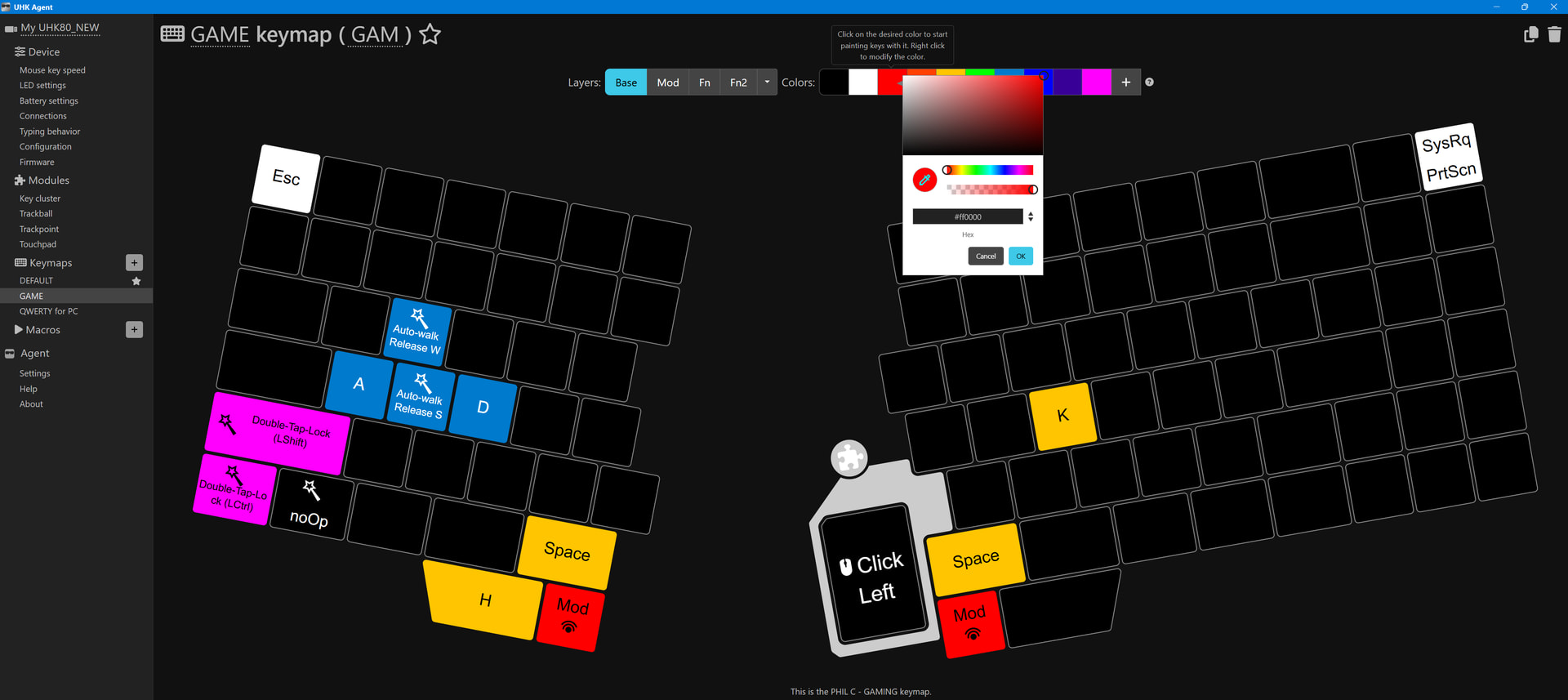
You can kinda do the reverse of that by setting the following in Agent: “LED settings → Backlighting mode → Per-key backlighting”
That will let you manually map the colors you want via the main keymap interface, instead of typing it all in with macros.
Then use set backlight.strategy functional for any keymaps you want to use functional lighting for.
For example, to only use functional lighting on your default QWR:
$onKeymapChange QWR
set backlight.strategy functional
Or for all other maps:
$onKeymapChange any
set backlight.strategy functional
BUT… Don’t forget that you’ll still need to use set backlight.strategy perKeyRgb in your $onKeymapChange HD2 or whatever when switching between functional/Per-keyRgb keymaps.