Motivation
At some point a year or so ago, I started getting the beginnings of discomfort in my hands after long days of coding. I guess age catches up to us all. I thought about it, and my conclusion was that the issue was mainly to do with the awkwardness of reaching key combinations, and so I had to find a solution for that.
The wrong solution
The first one to present itself, and the most obvious one with a fully programmable keyboard like the UHK, was of course to map the awkward key combinations to various combo/macro keys on alternative layers and then use those, but that has a couple of big disadvantages:
- Now I need to remember where I put all of those key combinations, without any indication in UI where they are. Sure, the program tells me to hit Ctrl+Shift+Alt+~, but where is that in my keymap?
- New key combos require overhead of setting them up.
- Old key combinations which have fallen out of use need to be cleaned up every so often.
All in all not a road I wanted to continue down.
The good solution
Move the keys around so the combos are not awkward anymore!
So I set out to make a layout not only without keys and macros dedicated to key combos, but without any NEED for such things. But how to do that?
Dealing with mods
First and foremost, I had to move the mods somewhere where I could activate any combination of them and still be able to press any key without ending up in an awkward hand position. Ideally, the non-mod keys should all still be accessible with their usual finger while mods were being held.
Since I had a lot of mods, this was hard. Shift, Ctrl, Alt, AltGr, Gui, Mod. I wanted to access all of those, or any combination thereof, without contorting my hands and without blocking the key I wanted to combo them with.
At first, I came up with the following key arrangement which worked reasonably well. I could make any combination of those three keys with my left thumb only.
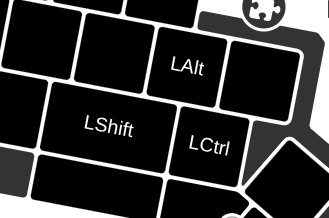
I could do a similar thing with the right thumb, only this is still pretty awkward, and I needed that thumb to use the mouse, potentially while holding mods. I had to find something even better!
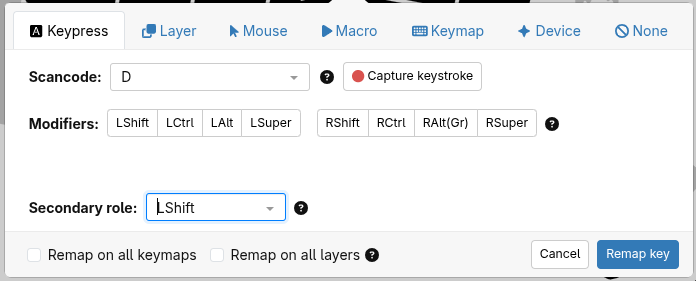
This is when I finally tried to use Home Row Mods (HRM). Unfortunately, I found the UHK offerings in this regard to be lacking. I simply could not get used to typing with HRMs with the Secondary role configuration options available on the UHK without false triggering every few letters. This turned into a whole other epic which has been documented here. The conclusion of that venture is that the UHK now has very solid support for HRMs, in my own humble and completely unbiased opinion.
Gathering data on key usage
The next issue was that even with better combo placements, frankly, the QWERTY layout is not good for fast and comfortable typing, sort of by design. I also wanted all keys to be available without moving my hands from the wrist rest, and without stretching my fingers into any awkward positions. In order to achieve this, I was already in for a considerable redesign of the key layout. So why not, as with the HRM implementation mentioned above, go all in?
First, I wrote a keylogger which collected statistics on everything I did on my keyboard for several weeks. The following information was gathered relating to each key:
- How many times it was reached for (repeat presses were disregarded)
- Which keys it was closely related to, that is to say which key preceded and succeeded the key
The reason for disregarding repeat presses is that otherwise something like navigation keys, go to next result keys, or other keys which are pressed repeatedly with no ergonomic cost, will be vastly over represented compared to how much it’s actually reached for while typing.
This data is generally available for any language you would care to mention, but for a bilingual software developer writing a combination of various programming and human languages, this gives me real world data on my own actual usage.
Deciding where to put keys
I also sat down and determined the following for each key on the keyboard:
- Which finger is most comfortable for reaching that key
- How comfortable it is to actually reach the key
The resulting data was a map of which finger was used to press a key, and whether the key was comfortable or not to reach for repeatedly
The layout was then constructed, with the following considerations in mind:
- Most used typing keys on the home row, obviously
- Less used keys at less comfortable places obviously
- Try to spread the keys such that fingers get a sort of even amount of usage. Fingers with more keys get less frequent keys, except the pinky gets it easy
- Try to avoid keys with close ties on the same fingers - H was a pain in this regard
- Try to let closely related keys be on adjacent fingers to allow rolling
- Keep all keys which have a logical connection grouped together on the same layer. Mostly, this meant keeping the alpha keys and punctuation on the main layer, and other keys on the mod layer, even though some letters are used less frequently than a number of keys on the mod layer.
- Try to keep the Vim navigation keys somewhat sanely located - H was a pain because of how many keys it was closely related to (ph, th, wh, sh, gh, …), and J since my data showed that it got very little use in typing, but was central for navigation. I think the resulting location made some logical sense at least, and fit with the other criteria. I matched the arrow keys relative locations to go easy on my sanity, and PgUp, PgDown, Home and End accordingly. Anyone wishing to try this layout who doesn’t care about Vim navigation keys can relocate the arrow keys and the PgUp, PgDown, Home and End according to their desires, and probably swap L and W.
Describing the resulting layout
The result can be seen on Yuzu, or in the config, or in the images below
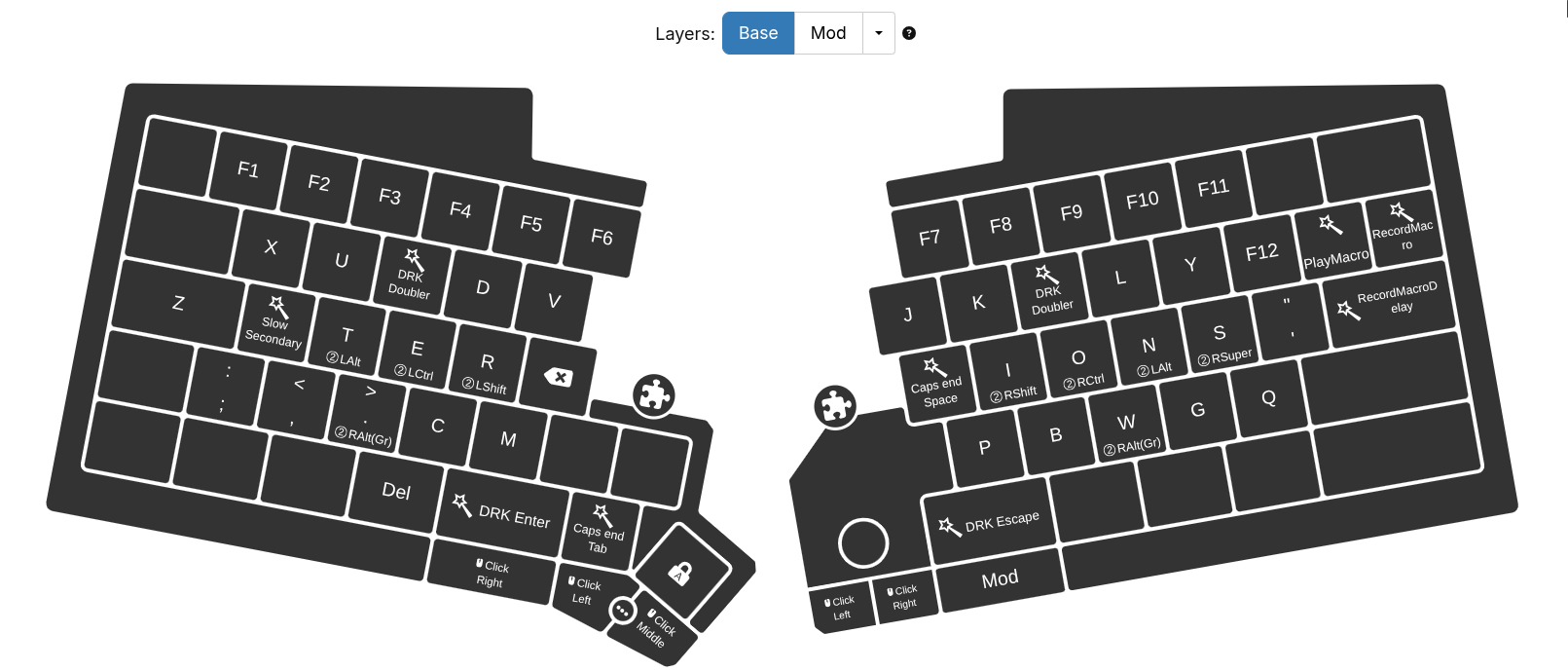
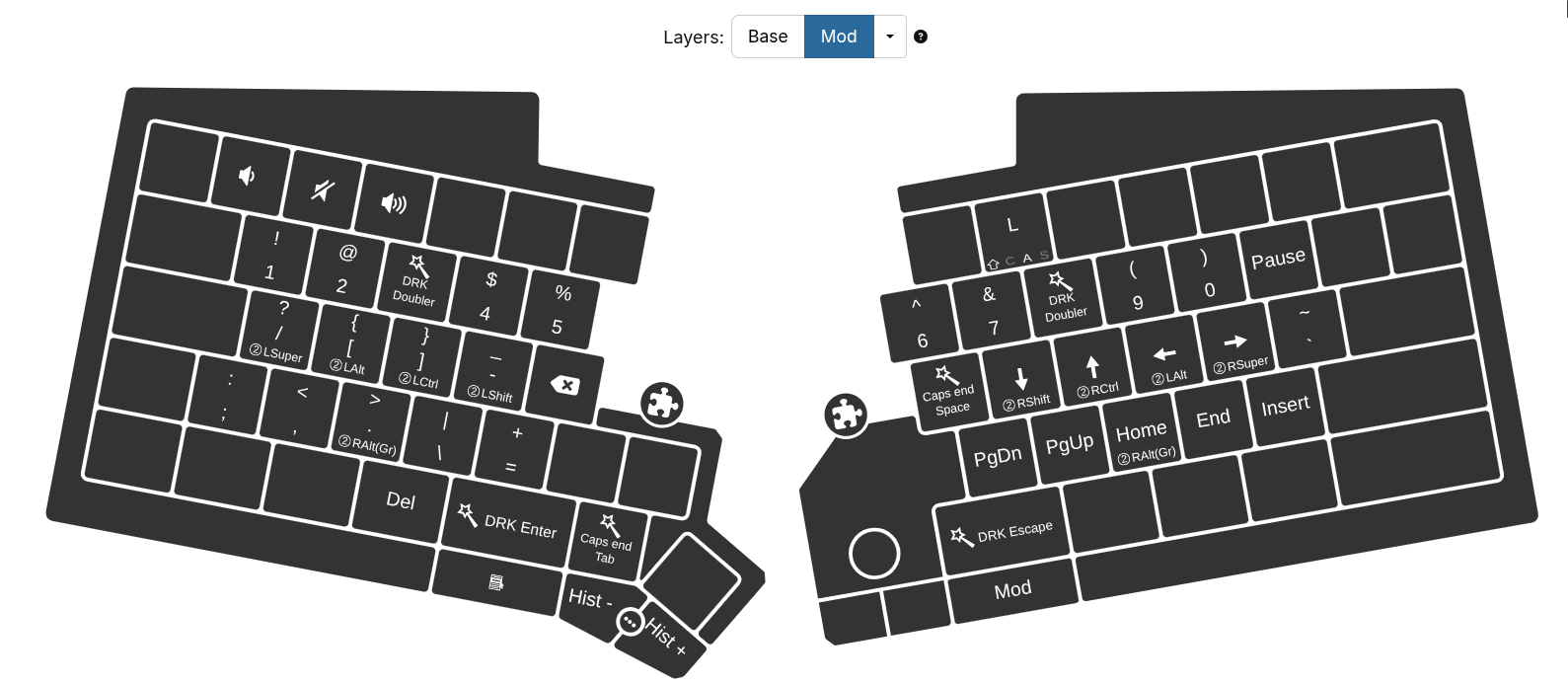
I have thankfully managed to keep all of the main keys within my comfortable zone. F1-12 are on stretch keys, but they aren’t used in typing, so I can live with stretching for them when I need them.
I was surprised to find that I could actually fit all of the keys within the comfortable keys on just two layers, with keys to spare. I used the leftover keys to duplicate keys from the main layer on the secondary layer. These are keys which are commonly used when typing number sequences (punctuation, space, enter, tab, backspace, delete). This is to avoid too much mod-dancing while typing numbers.
The locations of space, backspace, enter, tab, escape and delete are somewhat arbitrary. I placed space and backspace when I was still playing with the thumb mod idea, and then they got kinda stuck. I guess they would technically be better placed on thumbs according to most people’s preferences, but I actually find not using my thumbs for taps while typing more comfortable. I find the comfy keys on my not-thumbs more comfortable to use than the thumbs for taps.
Using HRMs, I have made all mods available on both hands so that any key combination can be made comfortably without any stretching. On the flip side, HRMs come with two disadvantages:
- False activations of the unintended role. This has been largely solved with the recent additions to the firmware in that area. Most people should be able to find some combination of the available parameters which enables them to type reliably without false activations.
- Typing in all-caps is annoying as one needs to change which hand holds Shift all the time. However, it turns out that the ancients before us had a solution to that already: Caps Lock is at a reachable location, and is then disabled through macros on Space, Enter and Tab, as well as via Escape. So when I need to type a word in all-caps, I just hit Caps Lock, type the word and on space, it’s disabled automatically.
The location of the HRMs could be switched, and in hindsight, I think I should have put shift on the middle finger instead of the index, but there’s no way I’m relearning that now!
Various tidbits
I use runtime macros via the three keys on the right. When the Record Macro key is pressed, recording starts when the next key is pressed, like it’s done in Vim. Recording stops when the record button is pressed again. Play works in the same way, with pressing the play key first, then a button with a recorded macro, again like it’s done in Vim. This way, I don’t have to have more than three dedicated buttons to access a practically unlimited amount of macros. The keyboard also lights up the keys on which macros have been recorded, making it easier to remember, and making at least some use of the LEDs I have painstakingly soldered onto the board.
Very recently, I have started playing with a home-made mod which doubles all key presses while held, available on the F and H keys (and corresponding mod layer keys). I’m trying to learn to use it, but muscle memory is hard to beat when there’s no punishment for not using it and just double tapping instead.
Apparently, my left pinky is pretty slow to release, because I get by far my most false activations of HRMs from that key. For that reason, I have made a macro to specifically increase the minimum hold time of that key to trigger secondary.
The chassis key mod on the right half is used more or less exclusively for scrolling with the right hand alone when I’m reading long documents. I press it with my thumb and scroll with my index.
I’m also working on my own wrist rests. I have made a set which is considerably thicker than the original ones, raising my palms by a centimeter or two. This, I find, gives a more comfortable typing experience, as some other ergo keyboards will agree. I will share images of those separately once I am done oiling them. Tung oil takes forever to dry, even in a warm room with plenty of air circulation, and needs many layers to get to the finish I want.

 . (A dumbed-down tutorial wouldn’t hurt either.) I’m sure it would be easier for me to wrap my head around it if I could see everything mapped out in Agent. If I have to read through the docs first, I’m gonna give up before I even start
  .
.
 .
. .
.